Getting Started
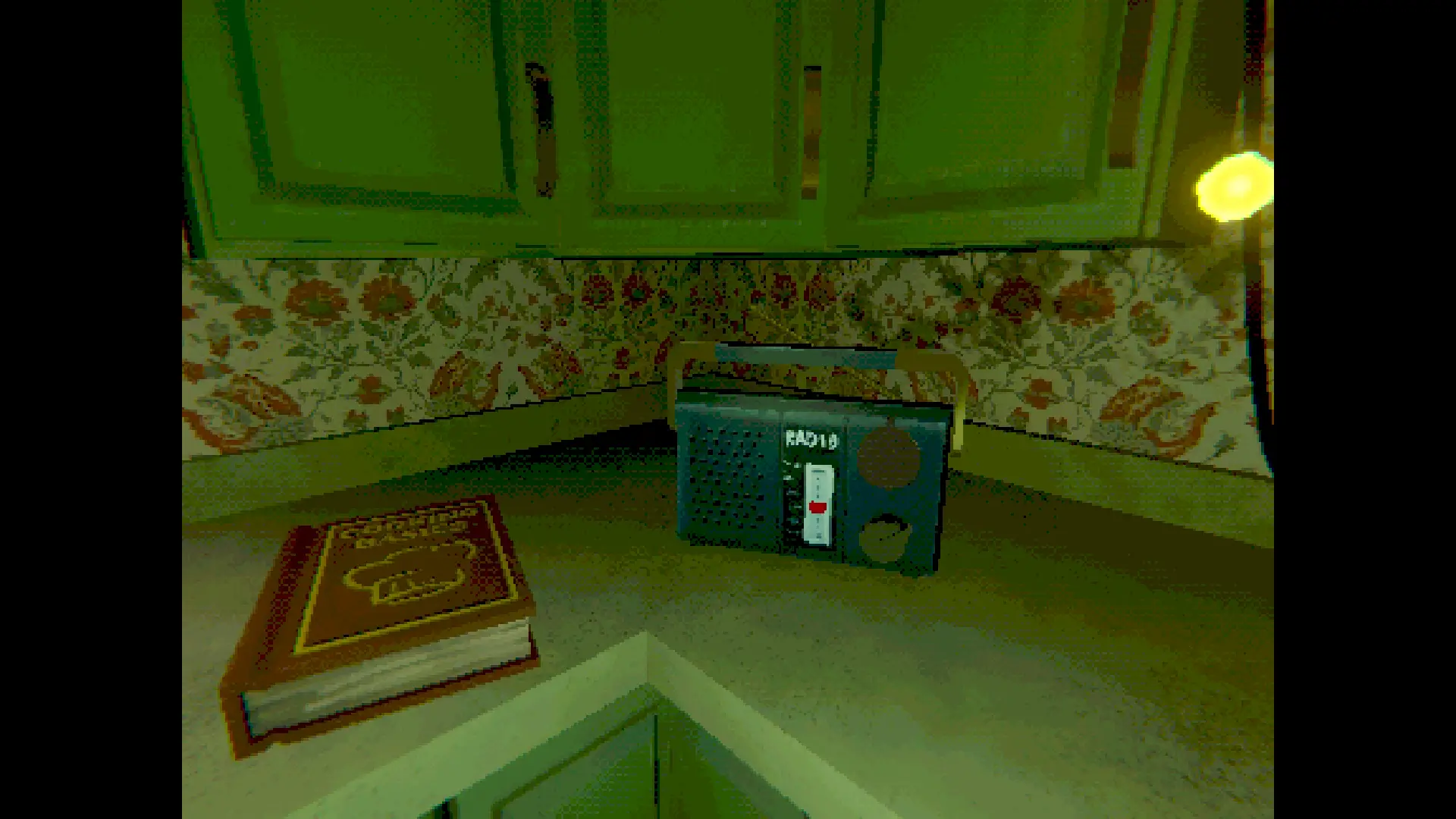
In Creature Kitchen you can add custom music to the in-game radio. Custom music will randomly play alongside the default music. The radio can be found near the cookbook on the kitchen counter.
All music has the same random chance to be selected each time a song is queued up. Once a song plays, it will not be used again until all others have been played as well.
Preparing Your Music
Navigating File Explorer
To upload music to the workshop you will first need to ensure hidden files are visible. To do this, select View → Show → Hidden Files.
Navigation to this option is similar in Windows 10, this example is for Windows 11.
With Hidden Files enabled, you can now find the folder you place content in to have it uploaded to the workshop. Note: this folder will only exist if you have launched the game at least once on your device.
The folder's location is:
Files and Folders
Below is an explanation of each file and folder in the CustomMixUploader directory:
- description – The description text for your workshop item. This can only be 200 characters long. You may edit it after the item is uploaded to be longer if desired.
- title – The title text for your workshop item. This may only be 50 characters long. You may edit it after the item is uploaded to be longer if desired (should this be supported by Steam).
- id – The id of a Steam Workshop item you have created that you want to update, rather than uploading a brand new item. To update a workshop item, the only text in this file should be the workshop ID number that you wish to update.
- Thumbnail – This folder must contain ONE .png or .jpg file that will be used as the thumbnail for your item on the workshop. You CANNOT change this thumbnail later. This thumbnail image must be less than 2MB in file size. The dimensions MUST be 512x512 for proper display. The name of your thumbnail does not matter.
- Music – This folder contains the music (
.mp3or.wavfiles) for your custom tracks that will be added to the radio's playlist. All files must be under 10MB in size. Total file size of all files may not exceed 100MB.
Uploading Your Mix
Once you have your files in place, launch the game. On the main menu you should see an “Upload Music” button to the left of the normal menu options.
If you don’t see this button, there is a problem with your files. A new file named __UploadErrors will appear in the same location as your music files detailing the problems.
Select “Upload Music” to begin the upload process. The upload process time varies based on the file size and internet connection speeds. In most cases, this process should take less than a minute.
__UploadErrors file.
Once the upload has finished, close the game and subscribe to your item to test it and make sure it sounds how you want. Music subscribed to while the game is running will NOT show up until the game is closed and reopened.
By default all music will be set as public. You can change this setting on the workshop item's page.
Notes on Downloading Mixes
- Mixes subscribed to while the game is running will not play until you restart the game.
- You must have an internet connection when starting the game to have subscribed mixes added to the radio, as this is when they are downloaded and verified.
- If using Linux, downloading workshop content is only confirmed to work on Proton 8.0-5.